SHARE HISTORY · QR

Share history (QR) — home records, with one QR code

Show the measurement, exercise and survey history you recorded in KINETIC LAB-Link by letting someone scan the QR code on your My Page with their smartphone. No login or app is needed. This page covers what clinics and trainers see, and the steps for LAB-Link users.

For clinics & trainers

For clinics and trainers

See your patients' (users') at-home measurement, exercise and survey records from LAB-Link on your own smartphone at their visit.

STEPSThree steps

No loginNo appStandard camera is all you need
  1. PatientShows the QR code on My PageThe patient opens “Show your history with a QR code” on their LAB-Link My Page and displays a QR code on the spot. Each code is valid for 5 minutes, one use.
  2. YouScan with the standard cameraPoint your smartphone's standard camera at the code. No app is needed; the page opens in your browser.
  3. YouTap “View history”Check the name and viewing period on the landing page, then tap “View history”. If you enter your name (optional), it appears in the patient's My Page under “Sharing with”.
i
The page stays available in the browser of the phone that scanned, until the viewing period (1 year) ends. Bookmark it or add it to your home screen. Forwarding the URL to someone else will not open it.
SCREENSWhat you can see

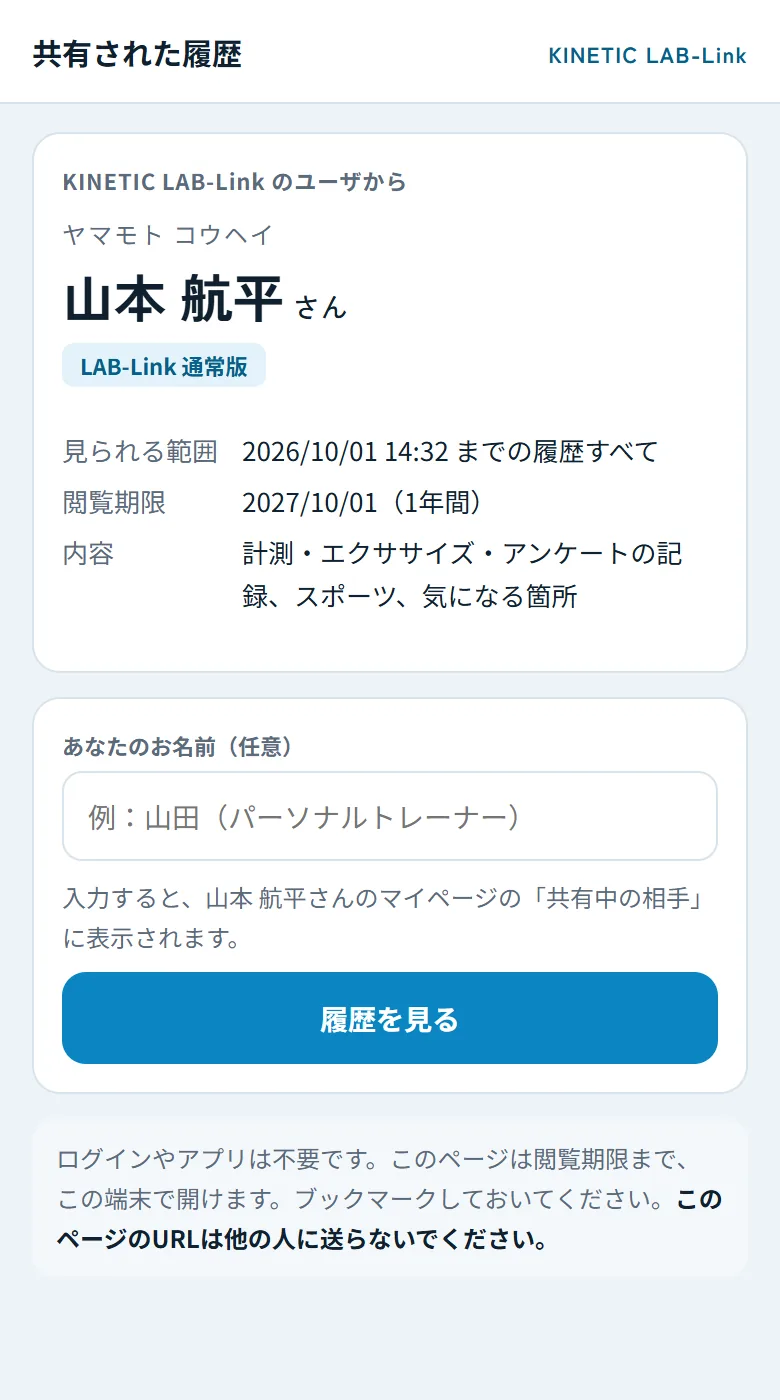
Landing page — Opens when the QR code is scanned. No login or app.
1. Landing page
Opens when the QR code is scanned. No login or app.
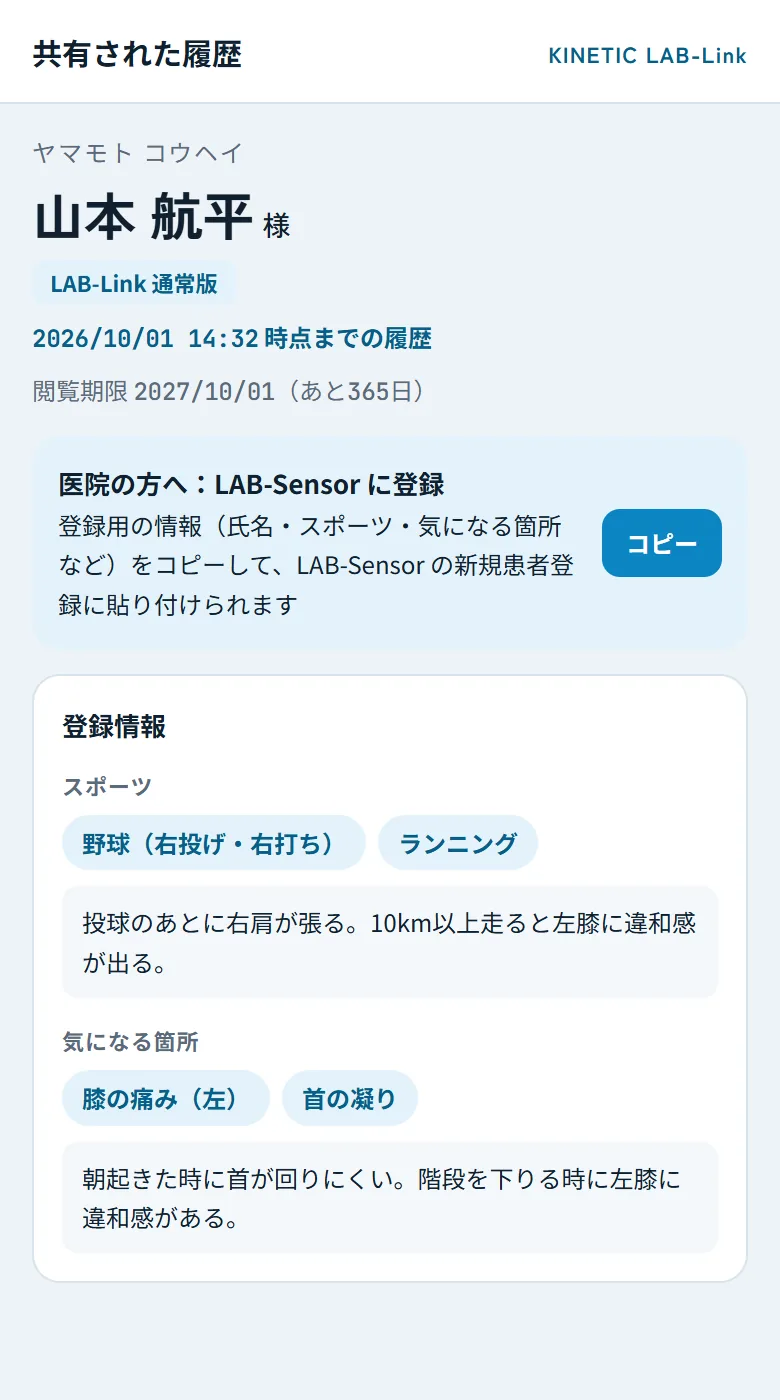
Patient info — Name and viewing period, sports and areas of concern. Registration details can be copied.
2. Patient info
Name and viewing period, sports and areas of concern. Registration details can be copied.
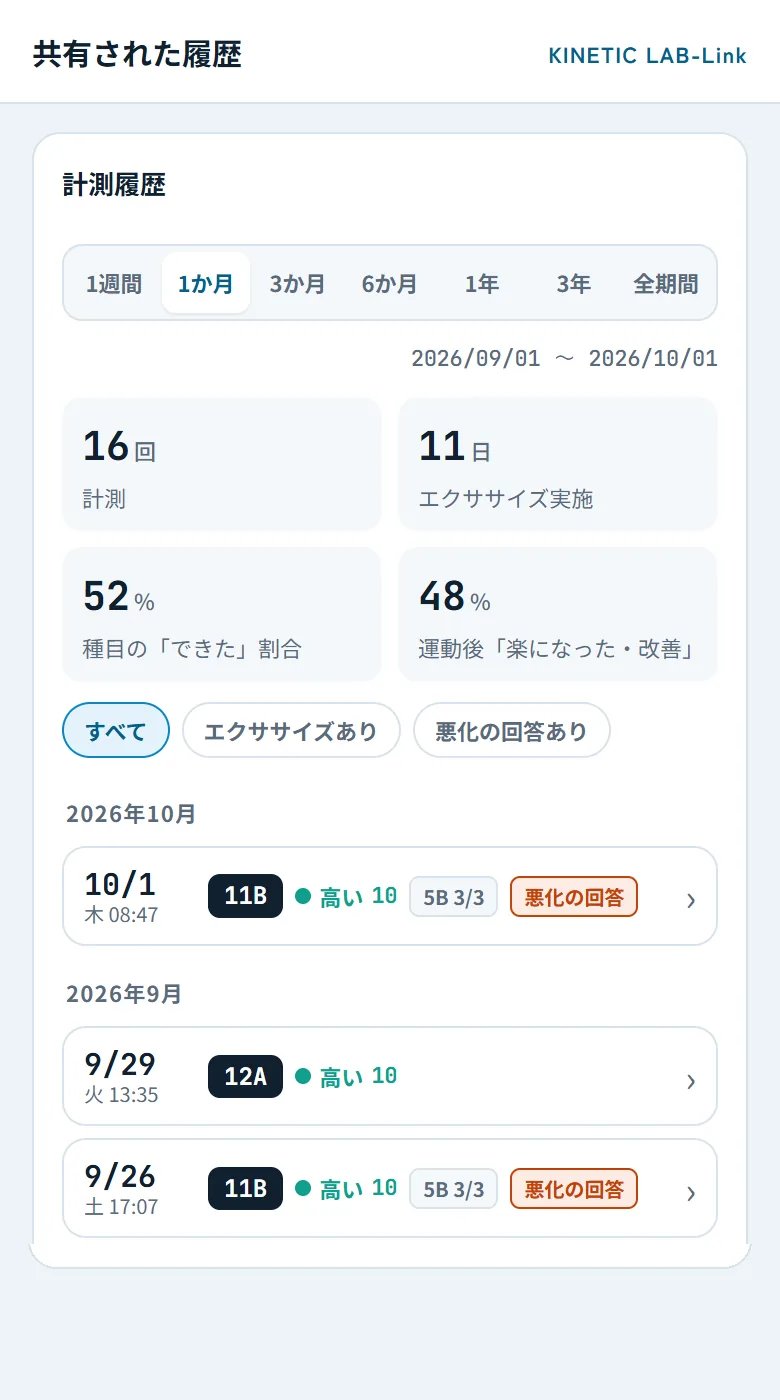
Measurement history — Switch the period from 1 week to all time. Days with a “worse” answer are marked.
3. Measurement history
Switch the period from 1 week to all time. Days with a “worse” answer are marked.
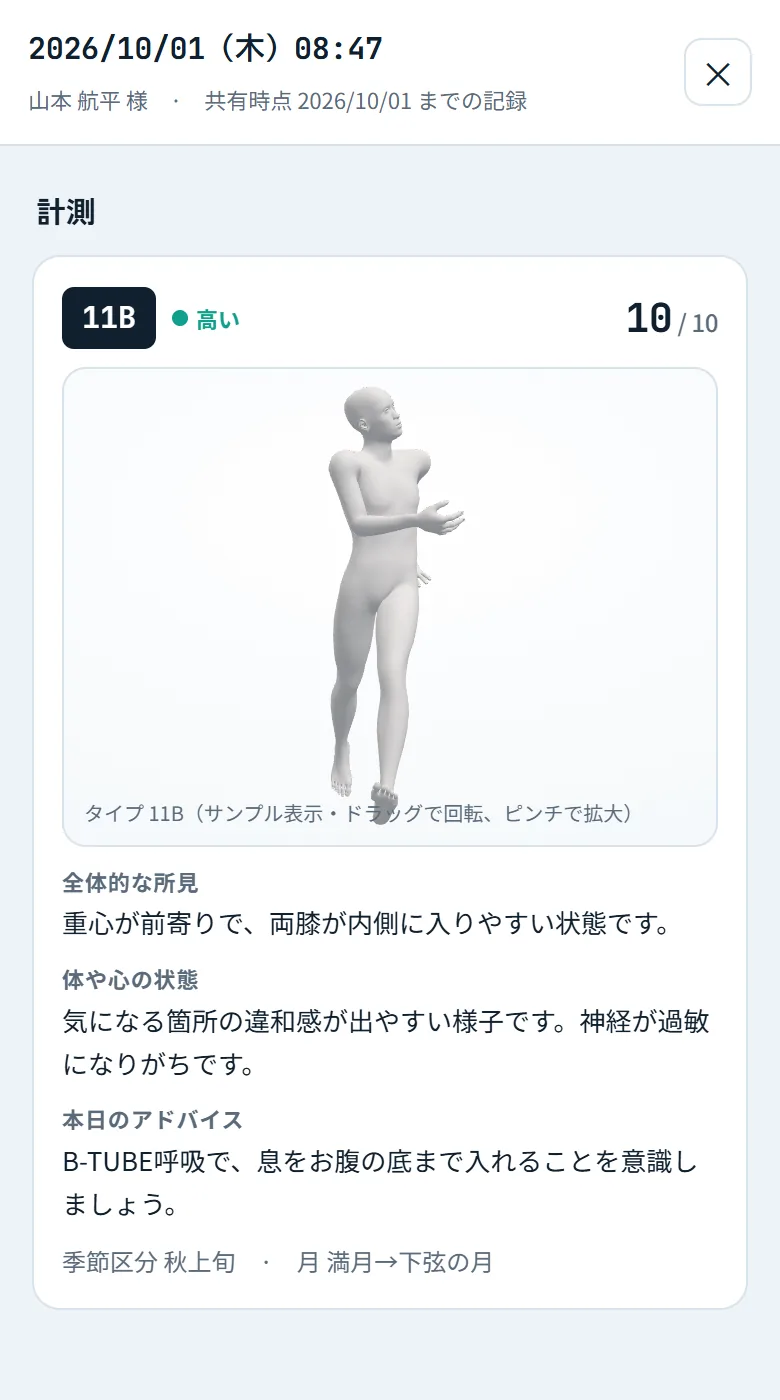
Record details — Type, score, 3D model, AI notes and the day's summary.
4. Record details
Type, score, 3D model, AI notes and the day's summary.
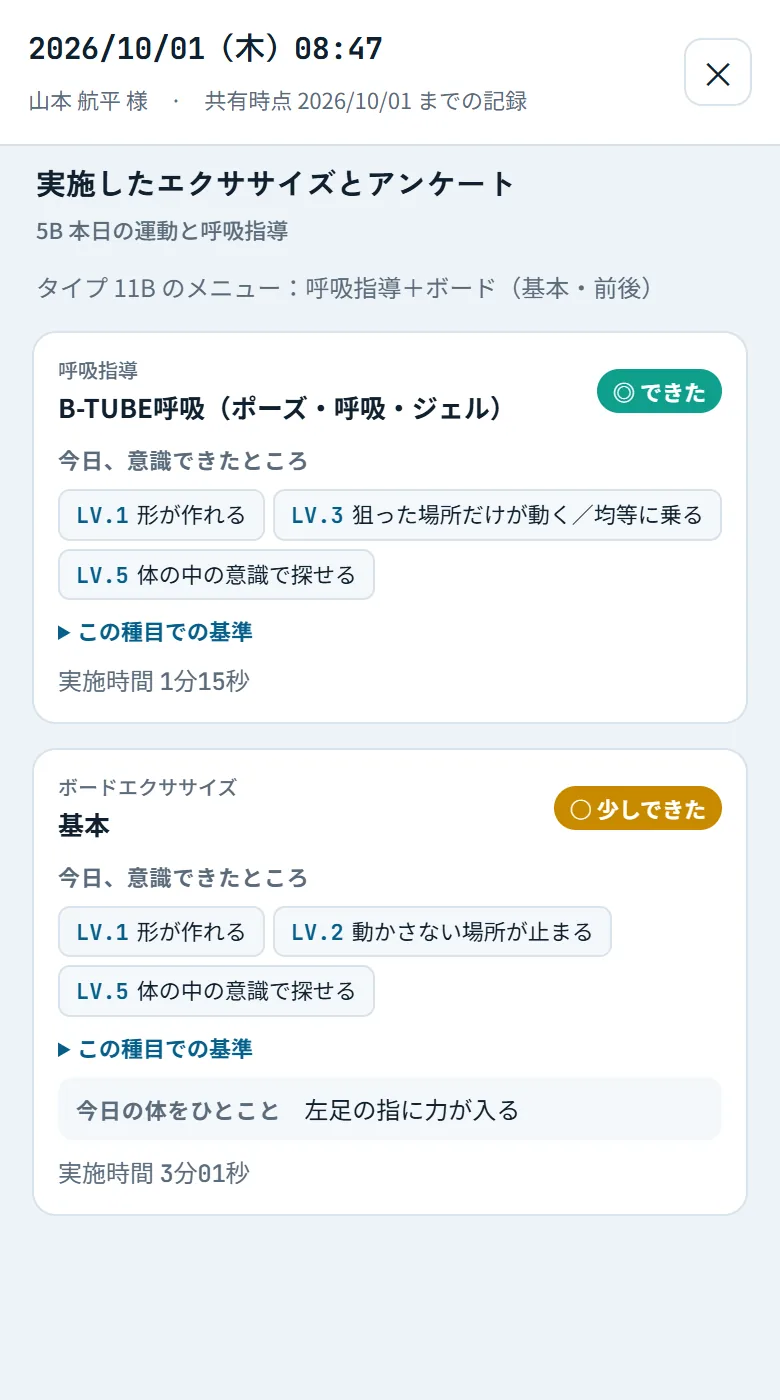
5B exercises — How each exercise went, awareness level and the patient's comment.
5. 5B exercises
How each exercise went, awareness level and the patient's comment.
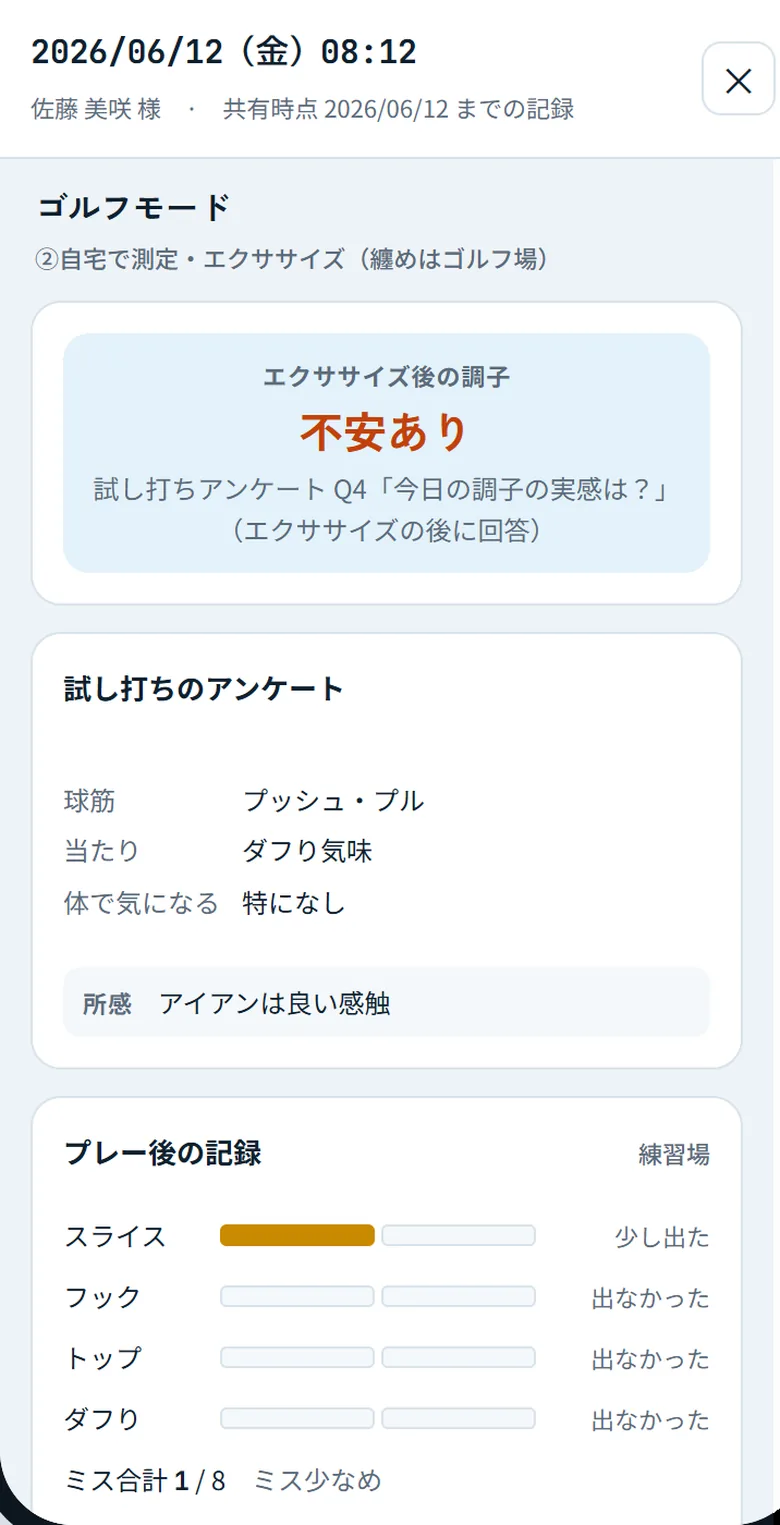
Golf mode — Condition after exercise, ball flight and contact in practice shots, misses after play.
6. Golf mode
Condition after exercise, ball flight and contact in practice shots, misses after play.

Screens are for illustration (sample data). Click to enlarge.

LAB-SENSORFor clinics using LAB-Sensor: patient registration

Tap “Copy” under “For clinics: register in LAB-Sensor” on the history page to copy the registration details (name, reading, sports, goals, areas of concern, body notes). Paste them into the new-patient form of the LAB-Sensor clinic admin console.

Open the clinic admin console (new window)

NOTESGood to know

  • 1You see records up to the moment of scanning. Anything recorded afterwards is not shown. To see the latest records, scan the QR code again at the next visit.
  • 2Records are viewable for 1 year from scanning. After that, scan again (on the same phone the share is simply refreshed).
  • 3The page opens only in the browser of the phone that scanned. If browser data was cleared or you use another browser or device, scan again.
  • 4Each QR code is valid for 5 minutes, one use. If it cannot be read, ask the patient to tap “Refresh QR”.
  • 5The patient can stop sharing at any time from My Page. Once stopped, the records are no longer shown.
  • 6Readings are not a medical diagnosis.

HELPTroubleshooting

  • !“This QR code cannot be used”
    The code expired (5 minutes) or was already scanned. Ask the patient to tap “Refresh QR” and scan again.
  • !“Cannot open on this device”
    Shared history opens only in the browser of the device that scanned. If browser data was cleared or another browser is used, scan again.
  • !“Viewing period has ended” / “Sharing was stopped”
    The 1-year period has passed, or the patient stopped sharing. Ask the patient to show the QR code again if needed.
  • !The QR code will not scan
    Ask the patient to raise the screen brightness. If the camera app does not recognise it, try the phone's QR scanner (Code Scanner in the iPhone Control Center, Google Lens on Android).

For LAB-Link users

For LAB-Link users

Show your practitioner or trainer your records on the spot, from “Show your history with a QR code” on My Page.

HOW TOHow to share with a QR code

  1. Log in at link.kinetic-lab.com and open “Show your history with a QR code” on My Page.
  2. Tap “Show QR code” and check “What they will see” and “Not shared” on the confirmation screen. The first time, enter the name to show to the other person (reading optional).
  3. Tap “Agree and show QR code”. The code is valid for 5 minutes, one use. Raise the screen brightness if it is hard to scan.
  4. When the other person scans it with their standard camera and taps “View history”, your screen changes to “Shared”. Give them a name so you can tell them apart later.
  5. Everyone you share with is listed under “Sharing with”. Tap “Stop sharing” and that person can no longer see your history.
⚠
Anyone who scans the QR code can view your history without logging in. Show it only to people you trust.

CONTENTSWhat is shared and what is not

What they will see

  • Name (and reading)
  • Registered sports and areas of concern
  • Measurement history (type, score, AI notes)
  • Exercise records and per-exercise surveys
  • Post-exercise surveys and golf mode records (golf mode users)

Not shared

  • Email address, home address, plan and payment information
  • Your conversations with the AI

They see your history up to the moment of scanning, for 1 year. Show the QR code again to share newer records. For someone you cannot meet, the previous “Send a URL” option remains: anyone with the URL can open it, and it shows only the measurement history and your registered sports and areas of concern.

FAQ

Frequently asked questions

Does the clinic or trainer need to log in or install an app?

No. Scanning the QR code with the phone's standard camera opens “Shared history” in the browser.

Can they see records added after the scan?

No. They see everything up to the moment of scanning. Show the QR code again to share newer records.

How long can they view it?

One year from scanning. Scanning again on the same phone refreshes the range to the latest records and extends the period by another year.

How do I stop sharing?

Open “Sharing with” on My Page and tap “Stop sharing”. That person immediately loses access.

The QR code will not scan, or “This QR code cannot be used” appears.

Each code is valid for 5 minutes, one use. Tap “Refresh QR”, raise the screen brightness and let them scan again.

Can it be opened on another phone or a PC?

No. Shared history opens only in the browser of the device that scanned (sending the URL does not work). To view on another device, scan the QR code on that device; it appears as a separate recipient on My Page.

Can the clinic register me in LAB-Sensor?

Yes. “Copy” under “For clinics: register in LAB-Sensor” on the history page copies the registration details to paste into the clinic admin console.

💬

Still stuck?

Contact us through the form with the message you saw and what happened.